
A Shared AI Workspace: Generate, Compare and Decide on One Live Canvas
Most AI image tools are built for one person and one prompt box. A shared canvas puts the whole team, every image and every version on one live board, so the decision happens where the work is.
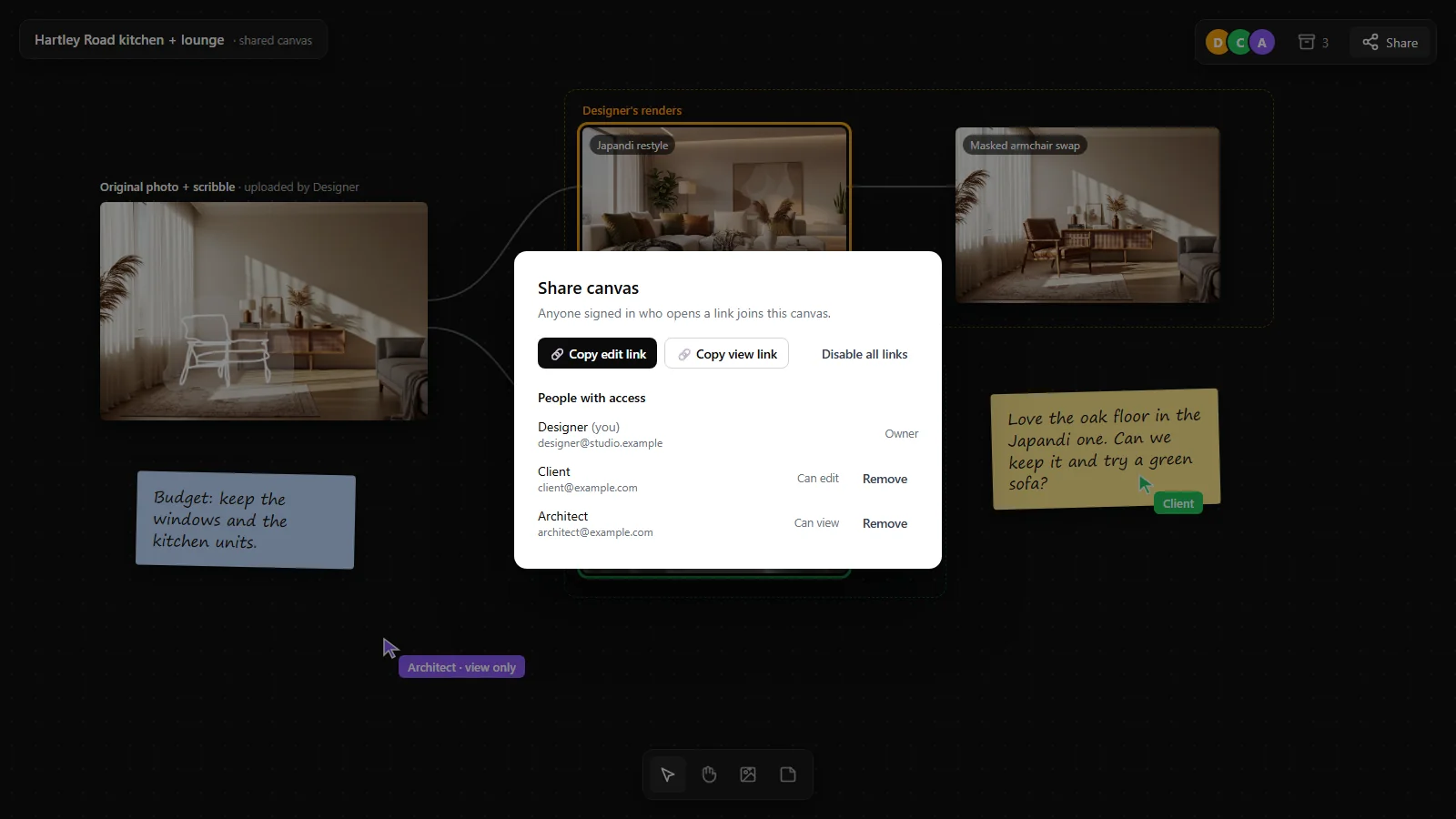
What a shared AI workspace is
A collaborative AI canvas is an infinite board that several people work on at once. You drop images onto it, generate and edit new ones right there, and leave notes beside them. Everyone sees everyone else's cursor and changes live, and every generated image stays joined by a line to the image it came from.
Compare that with how AI images usually get made as a team. One person prompts in a private app, downloads the good ones, and posts them to Slack or WhatsApp. The prompt behind the winning version is gone, nobody knows which file is the latest, and feedback lives three threads away from the image it's about. A shared workspace keeps the work and the conversation in one place.
What you can do on the canvas
CreateLevel's canvas is built for photos of real rooms and buildings, but the tools are general. Here's what's on it today:
- Bring images in any way you like: drag files onto the board, click Add images, or paste with Ctrl+V (Cmd+V on a Mac).
- Click any image to open its panel, with four tabs. Edit changes it from a plain-words prompt, Render restyles it with a preset like Japandi, Mid-century or Dusk render, Scribble follows lines you draw over it, and Upscale enlarges it to 2K or 4K.
- Make up to four variations in one go, and add up to two reference images when you have a specific product or material in mind.
- Follow the lineage. Every result is joined to its source by a line, so a board of fifty renders still reads as a family tree, not a pile.
- Reuse what worked. Open any render's details to see its prompt, scribble, references and settings, and run them again.
- Leave sticky notes in yellow, green, blue, pink or grey, in three text sizes, right next to the image they're about.
- Tidy up with Archive. Removed items go to the canvas Archive and can be restored; only the owner can delete for good.
- Move around fast: hold Space to pan, use Fit to content to see everything, and download any image when it's done.
Working live with other people
Open the canvas while someone else is on it and you'll see their avatar in the header and their named cursor on the board. When they drag a render into a corner, it moves on your screen. When they generate something, it lands on yours too. You stop describing images to each other and start pointing at them.
Access is set by the link you send. An edit link lets someone move things, add images and notes, and make renders. A view link lets them watch and follow along, with 'View only' shown next to their cursor so nobody wonders why they can't move anything.
Set up a shared canvas in five minutes
- Open CreateLevel and click Create canvas on your home screen, then give it a name.
- Add your starting images: site photos, room shots, sketches, mood references.
- Click Share and copy an edit link for collaborators and a view link for anyone who should only watch.
- Send the links. Anyone with a free CreateLevel account joins straight away, with no seat to buy.
- Generate, scribble and leave notes together. When the project is done, remove people one by one or click 'Disable all links' to close every invite at once.
Who it's for
Interior designers sharing options with clients are the obvious case, and we've written up that workflow on its own. But the same board works for a couple renovating a house who can't agree on the kitchen, an estate agent getting a seller to sign off on virtual staging, a builder showing a homeowner what a remodel could look like, or a small studio that wants a shared board without per-seat pricing. If you're weighing it against an architecture tool, see Gendo vs CreateLevel.
What it costs, and what it doesn't do yet
Joining a canvas is free. Renders made on it come off the owner's plan, whoever clicks generate, so a client can try 'the same, but in walnut' without paying for anything. Creating a canvas needs a paid plan: the $7 Day Pass covers a one-off project with 40 generations over a week, Starter is $19 a month for 150, and Pro adds the commercial licence for client work you invoice. Every plan is on the pricing page.
To be straight about the gaps: there are no threaded comments yet (notes do that job), no whole-canvas snapshots, and no per-person generation limits, so switch a very keen collaborator to a view link if your credits matter. All three are on our list.
Frequently asked questions
- What is a collaborative AI canvas?
- A shared, infinite board where several people upload images, generate and edit AI renders, and leave notes together, with everyone's cursor and changes visible in real time.
- Can several people generate AI images on the same canvas at once?
- Yes. Anyone with an edit link can generate on a CreateLevel canvas, and new images appear for everyone live. Generations use the canvas owner's plan.
- Do collaborators need a paid account?
- No. A free account is enough to join from a link. Only the owner needs a paid plan, starting with the $7 Day Pass.
- Can I share a canvas as view-only?
- Yes. Copy the view link instead of the edit link. Viewers see everything live but can't move, add or generate anything.
Curious how your own room would look?
Upload a photo and try it. The first five generations are free, no card needed, and the plans start at $7 if you want more.
Keep reading
Free AI Interior Design From a Photo of Your Room
Free AI interior design from one photo: upload a room and get a photorealistic redesign in seconds. 50+ styles, mask-level editing, no credit card.
Shared Canvases: Design a Room Together, Live, With AI
Design feedback used to arrive as screenshots in a group chat. Now the photo, every render made from it and everyone's notes sit on one board, and the people you invite can watch ideas land as they happen.
Gendo vs CreateLevel: Two Collaborative AI Design Canvases Compared
Both tools put AI renders on a shared canvas your team can work on. They're built for different people, though, and the price gap is big enough that picking the wrong one hurts.
Gendo.ai Alternatives: Free and Cheaper Options
Looking for a Gendo.ai alternative? Compare CreateLevel, Mnml.ai and NewArc.ai on price, free tier, masking, sketch input and exterior support.