
Change One Thing in a Room Photo With AI, Without Losing the Rest
You asked for a different sofa and got a different room. Masking is how you tell the AI which bit is up for change and which bits it has to leave alone.
The edit you actually wanted
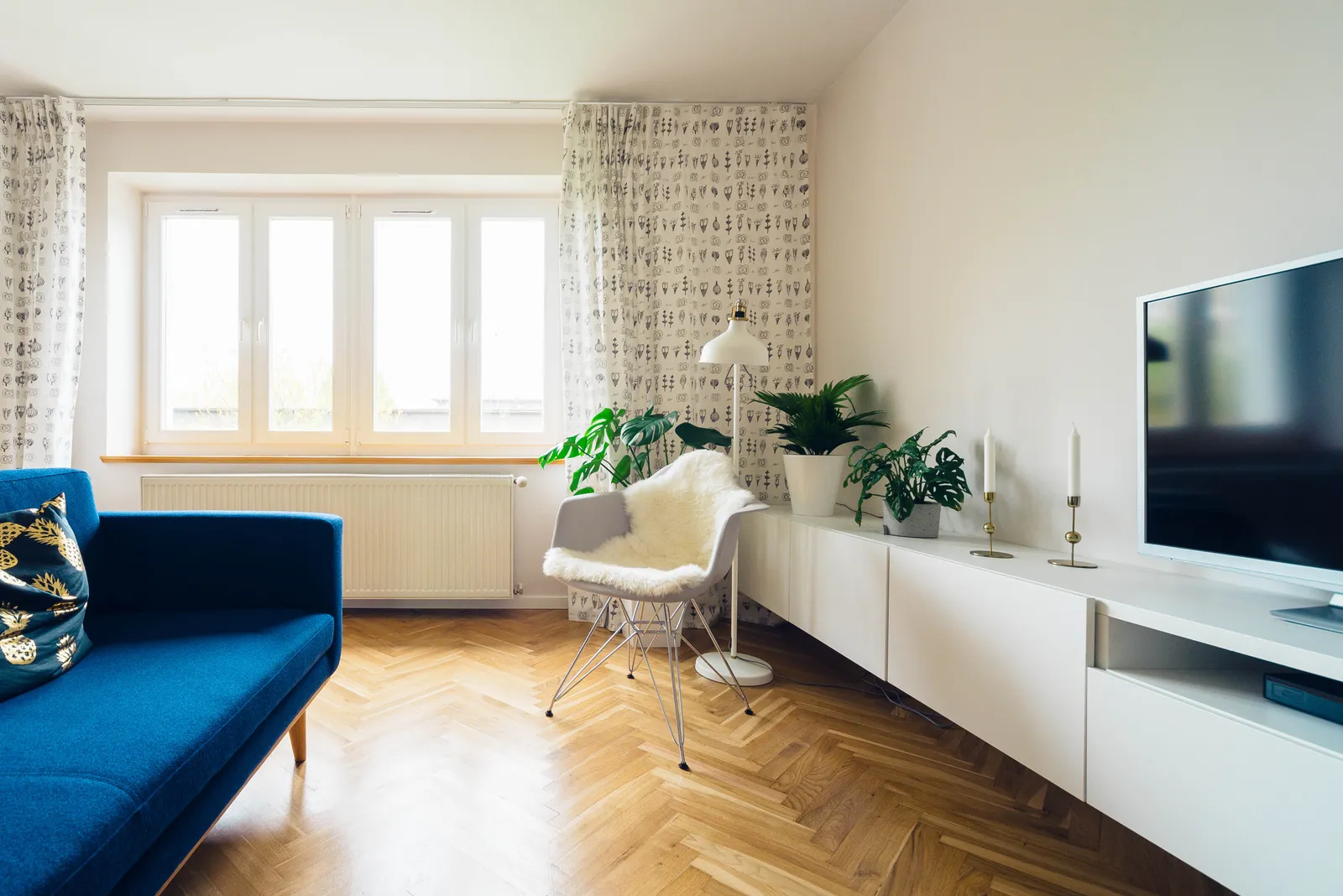
Take the living room at the top of this page (photo by Jarosław Ceborski, CC0 via Unsplash). Herringbone floor, a white wall of windows, long low cabinets, a few plants. It's a nice room. Say you like all of it except the blue sofa, and you want to see how a deep green velvet one would look in the same spot.
That's probably the most common interior edit there is, and it's very precise. One object changes. The room, the camera and the light stay exactly as they are. Anything else that moves is a mistake, even if it's a pretty one.
What you usually get back
Most AI image tools treat an edit as a fresh generation that uses your photo as a loose guide. So you type 'replace the blue sofa with a green velvet sofa', and the sofa does turn green.
Then you notice the floor. The herringbone has become straight planks, or a slightly different herringbone. The window has gained a pane. The radiator's gone. The whole room looks a few degrees wider than before, the plants are new plants, and the white chair has turned into a cousin of itself. The new sofa is a bit too big and doesn't quite sit on the floor. Even the daylight has shifted.
None of it is terrible on its own. It's just not your room any more.
Why the whole picture changes
A plain image-to-image edit redraws every pixel. Your prompt can describe what you want to see, but there's no way in words to say 'and leave everything else exactly where it is'. So the model redraws the floor, the walls and the window along with the sofa, because as far as it's concerned they're all part of the job.
Most tools give you a strength slider to make up for it. Turn it down and the room survives, but the sofa barely changes. Turn it up and the sofa changes, and so does everything else. You end up hunting for a setting in the middle that doesn't really exist, because one dial is controlling the whole image.
Masking: putting a fence around the change
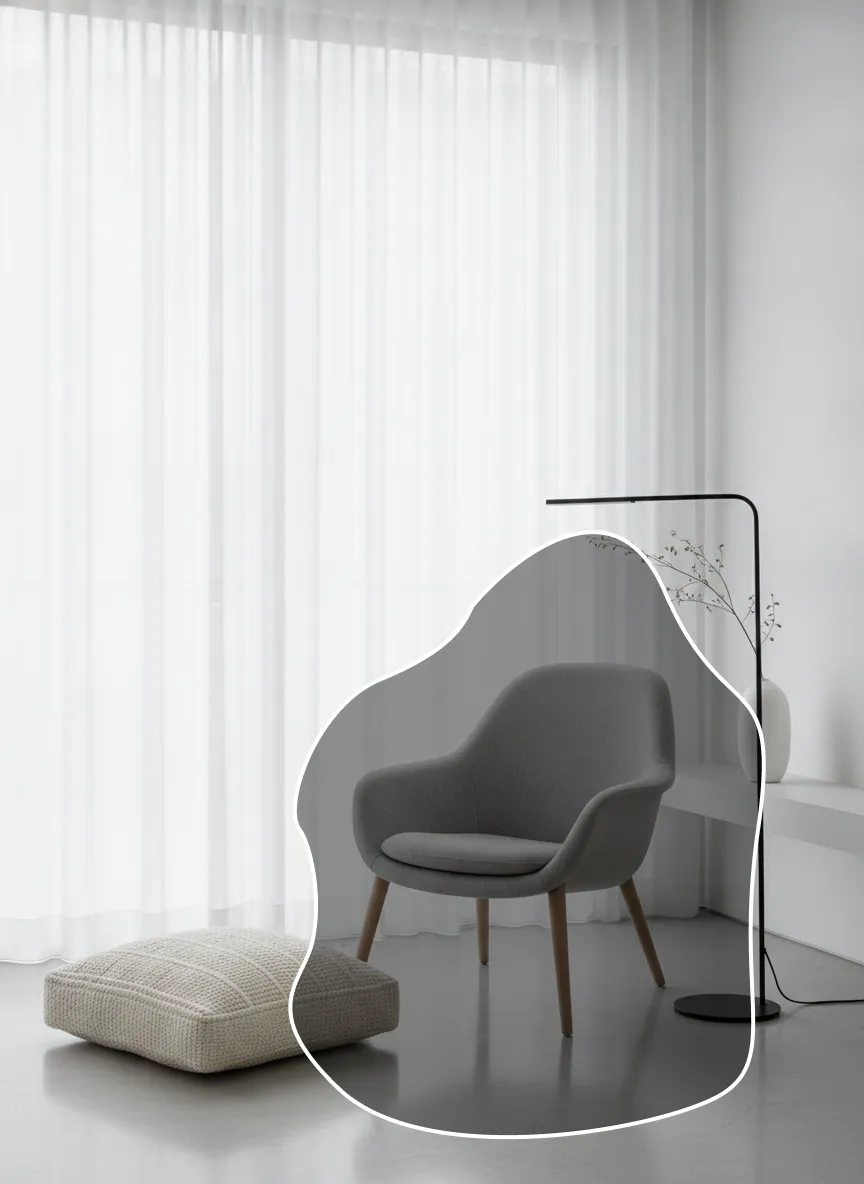
A mask gets you out of that trade-off. You paint over the bit you want changed, and the model regenerates only inside it, at full strength. Outside the mask, the original photo stays exactly as it was, down to the pixel. You'll also hear this called inpainting.
There's a nice side effect, too. The new content is generated from the pixels around it, so it picks up the room's perspective, the direction of the light and the colour temperature. A new sofa ends up on the same floor and in the same window light as the old one, without you having to ask.
Swapping one object in CreateLevel
The whole thing takes about a minute.
- Upload the room photo. A straight-on phone shot is fine.
- Switch to the mask layer and brush over the object. For things with straight edges, like a wall or a cabinet, the lasso is quicker.
- Cover the object plus a little margin, including its shadow and the spot where it meets the floor, so the new piece has room to sit naturally.
- In the prompt, describe only what goes inside the mask: 'deep green velvet three-seat sofa, low arms, oak legs'. Leave the room out of it.
- If you've got a specific product or fabric in mind, add it as a reference image.
- Generate, look through the variations, and keep the one that fits.
- Then do the next object with a new mask. One change per generation means you can always step back.
When the shape matters, draw it
The mask decides where the model is allowed to work. A drawing decides what shape it makes there. If you've got a particular silhouette in mind, like a curved sofa, a tall arched mirror or a chair turned towards the window, sketch a rough outline on the draw layer inside the masked area. CreateLevel then runs a draw-with-mask generation that follows your lines inside the mask and leaves everything outside it alone.
It's also the most reliable way to add something that isn't in the photo yet. The outline tells the model where the new piece goes, how big it is and which way it faces.
Getting clean masked edits
When a masked edit looks off, it's nearly always the mask rather than the model. A tight mask that hugs the old sofa leaves a thin halo of blue around the new one, so paint a little wider than you think you need. Include the contact shadow as well. If the old shadow sits outside the mask, it'll still be on the floor under the new sofa, and it looks odd.
For a wall colour or a new floor, mask the whole surface right up to its edges, then use the eraser to pull the mask back off the skirting boards and window frames. If you're swapping something for a smaller piece, mask the size of the old one so the model can fill in the wall behind it. And anything you love, just leave unmasked while you redesign around it.
Edits that work well with a mask
Pretty much anything that's one object or one surface. Swapping a sofa, a bed, a table or a rug. Repainting one wall, or all of them. Changing the floor from herringbone to wide planks, or carpet to tile. Clearing out clutter, cables and old radiators. Adding a pendant light, some shelves, art or plants. New curtains, blinds or kitchen cabinet fronts.
What a mask won't do
A mask edits what's in the picture. It won't move the camera, and it won't rework the architecture on its own. If you want the window somewhere else or a wall gone, mask that whole area and describe what should be there, but treat what comes back as a concept to talk through with a builder.
And like any AI render, sizes are visual rather than measured. Check that the real sofa fits before you order it.
Watch the demo
Frequently asked questions
- How do I change just one object in a room photo with AI?
- Use a mask. In CreateLevel, upload the photo, brush over the object on the mask layer, describe only the replacement, and generate. Only the masked area is regenerated. Every other pixel stays the same.
- Why does AI change the whole room when I only ask for a new sofa?
- Because a normal image-to-image edit redraws every pixel, and a prompt has no way of saying 'leave the rest alone'. A mask does, because it limits where the model is allowed to work.
- What is inpainting in interior design?
- It means regenerating only a selected part of an image. For interiors, that's how you replace a piece of furniture, change a wall or floor, or clear out clutter in a room photo without redesigning the whole room.
- Will the new furniture match the room's perspective and lighting?
- Usually, yes. The masked area is generated from the pixels around it, so it picks up the floor plane, the light direction and the colour of the room. If you want control over the exact shape and angle, draw a rough outline inside the mask too.
- Can I change the wall colour or floor with AI masking?
- Yes. Mask the whole wall or floor right to its edges, describe the new finish ('sage green matt paint' or 'wide oak planks, natural oil'), and generate. The furniture outside the mask stays put.
- Can I use a product photo for the replacement?
- Yes. Add it as a reference image along with your mask, and the generated piece will follow its style, material and colour.
Try it on your own room
Every style unlocked, interior and exterior both included. Plans from $7.
Keep reading
AI Interior & Room Design From a Single Photo
Free AI interior design from one photo: upload a room and get a photorealistic redesign in seconds. 50+ styles, mask-level editing, no credit card.
Why AI Gets Interior Perspective Wrong, and How Drawing Fixes It
You know exactly which corner of the room you want to see. Forty prompts later, the walls still lean. This is a geometry problem, and you can't type your way out of it.
AI Photo Editor or AI Image Editor? What to Use to Redesign a Room
An AI photo editor fixes a photo. An AI image editor changes what is in it. Interior AI changes a room and keeps it believable. Which one you need depends on the job.
Interior AI With a Drawing Feature: Sketch, Brush and Redesign Any Room
Most interior AI tools only let you type and hope. With a drawing feature you show the model where things go, and it only touches what you drew.
AI Living Room Design From a Photo of Your Room
Redesign your living room with AI from one photo. Try new sofas, rugs, wall colours and layouts on your own room, free to start with no credit card.