
Interior AI With a Drawing Feature: Sketch, Brush and Redesign Any Room
Most interior AI tools only let you type and hope. With a drawing feature you show the model where things go, and it only touches what you drew.
What 'interior AI with a drawing feature' means
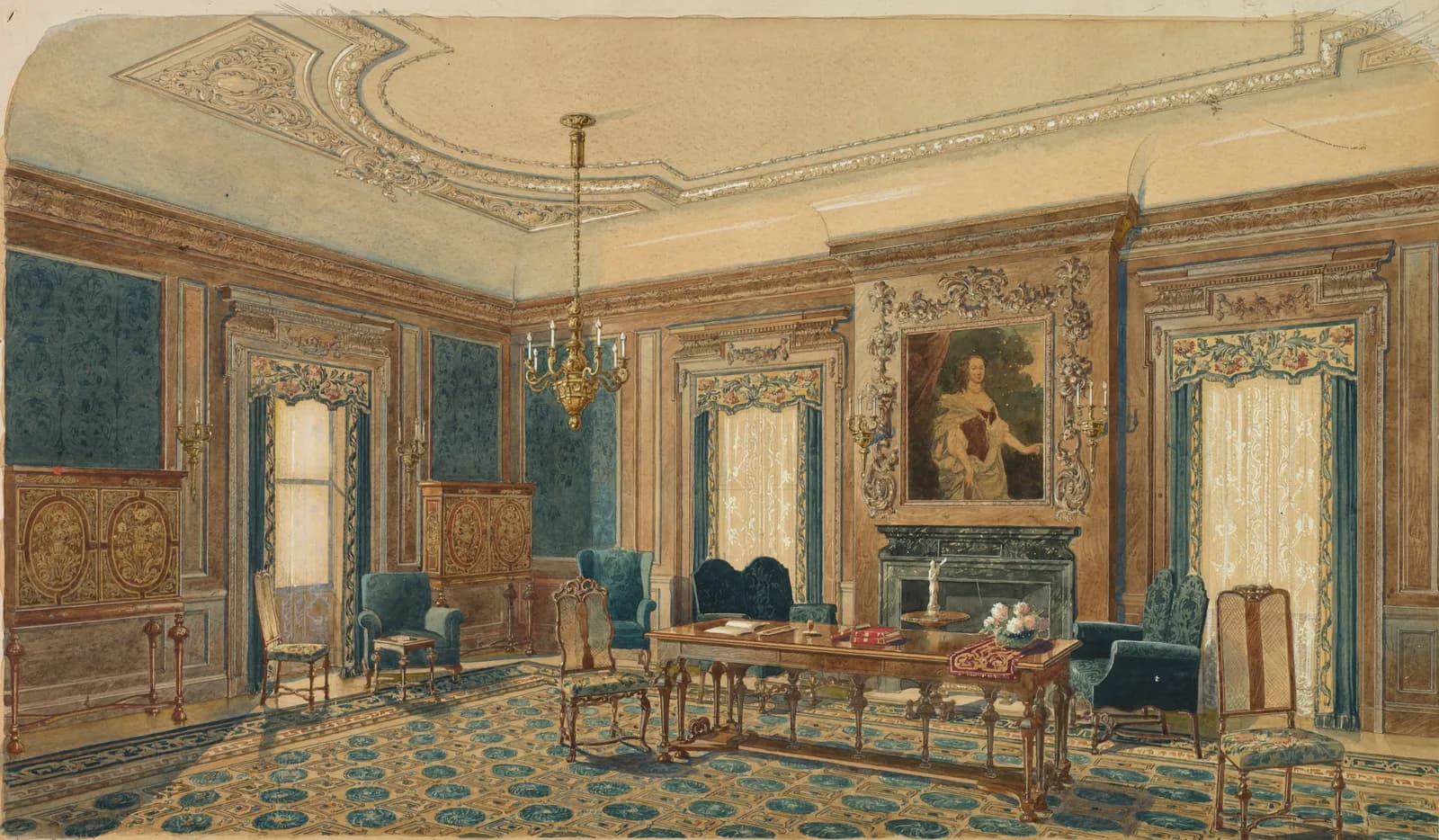
Designers have drawn rooms before building them for centuries. The watercolour above, an interior sketch by August Frederick Biehle now in the Cleveland Museum of Art, was the rendering technology of its day. Interior AI with a drawing feature does the same job in about fifteen seconds, from a far rougher drawing.
The phrase covers two different features, and most tools only ship one of them. It helps to know which one you need before you sign up.
- Sketch to interior: you draw the room from nothing (on paper, a tablet or in CAD) and the AI turns your linework into a photorealistic render.
- Draw on a photo: you upload a photo of your real room, brush over one area, and the AI changes only what's under the brush. This is often called masking or inpainting.
Why drawing beats typing a prompt
A text-only interior AI has to guess your layout. Ask for 'a sofa under the window' and you get a sofa somewhere near a window, a different sofa each time, and a room that shifts around it. Words are good at describing materials and mood and bad at describing position.
Drawing splits the job. The drawing fixes where things are, and the prompt describes what they look like. That's why a thirty-second sketch plus a one-line prompt usually beats a paragraph of careful prompt writing.
Sketch to interior: turning a hand drawing into a render
An AI sketch-to-interior model reads three things from your drawing: edges, openings and depth. It ignores almost everything else, and shading hurts, because the model reads pencil tone as real shadow.
Draw the way you'd explain the room to a builder:
- Pick one perspective and hold it. One-point perspective from the doorway is the easiest.
- Draw windows and doors clearly. They set the scale of everything else in the room.
- Block furniture as simple boxes. A rectangle for the sofa is enough.
- Close your shapes. A gap in a wall line reads as an opening.
- Leave colour, material and lighting out of the drawing and put them in the prompt.
Draw on a photo: the brush tool that fixes iteration
Iteration is the weak spot in most AI room design tools. You get a render you like apart from the rug, you regenerate, and the new version has a better rug and a worse everything else.
A brush or mask tool fixes that. Paint over the rug, type 'jute rug, natural tone', and generate. Only the pixels under your brush change, and the sofa, the walls, the light and the camera angle stay where they were.
In CreateLevel this works at object level, so the common edits take a single brush stroke:
- Swap one piece of furniture and keep the rest of the room.
- Repaint a single wall or change the flooring.
- Remove clutter, radiators or old fittings.
- Add something that isn't there yet, like shelving, a pendant light or a plant.
- Keep a piece you love by leaving it unmasked while you redesign around it.
A workflow that converges on a design
The two drawing features work best together. This order gets you from idea to finished room with the fewest wasted generations:
- Start broad: upload a photo (or a sketch) and run a whole-room restyle to pick a direction.
- Keep the winner and stop regenerating the whole image.
- Brush the biggest surface you want to change first, usually the walls or the floor.
- Then work down to furniture, one piece per generation.
- Finish with small things like lighting, art and textiles.
Prompts that work with a drawing
Once the drawing sets the layout, the prompt only has to describe finishes. Short and specific works better than long and poetic. Material, colour, era and light, in that order, cover most of it.
'Warm oak floor, lime-washed white walls, low afternoon sun from the left' will outperform 'a cosy, inviting Scandinavian living room with a relaxed feel', because the second prompt leaves the model to guess.
For a masked edit, describe only the thing inside the brush. If you masked the sofa, the prompt is 'deep green velvet three-seat sofa', not a description of the whole room.
What to check before you pick a tool
Plenty of interior AI tools say they accept sketches. Fewer do it well, and fewer still have a proper brush. Test these four things on a free tier before you pay:
- Does it accept both a sketch and a photo, or only one?
- Is there a brush or mask tool, and does it really leave the unmasked area untouched?
- Can you keep an object while you redesign around it?
- Is the export full resolution and free of watermarks on the plan you would buy?
Where drawing-based interior AI stops
A render made from a sketch is a concept image. It doesn't know your real dimensions, whether a wall is load-bearing, or what a finish costs once installed. Use it to decide what you want and to explain it to a partner, client or contractor, then get measured drawings and real quotes before anything is built.
Watch the demo
Frequently asked questions
- Is there an interior AI with a drawing feature?
- Yes. CreateLevel supports both kinds: you can upload a hand sketch and get a photorealistic interior render, or upload a room photo and brush over one area to change only that part. Both are included on the free tier.
- Can AI turn my hand-drawn room sketch into a realistic photo?
- Yes. A sketch-to-image model uses your drawing as the structure and generates materials, lighting and detail from your text prompt. Clean outlines with clear windows and doors give the best results; shading and texture tend to make them worse.
- How do I change just one thing in a room photo with AI?
- Use a brush or mask tool. Paint over the object you want to change, describe the replacement, and generate. Everything outside the brushed area stays as it was, so you can change the sofa without losing the rest of the design.
- Can AI edit an image from a drawing?
- Yes. Brush or draw over part of a photo, describe the change, and only that area is regenerated. This kind of AI image editing keeps the rest of the picture as it was.
- What is drawing AI?
- Drawing AI turns a sketch or brush stroke into a finished image. In interior design that means either a hand-drawn room becoming a photoreal render, or a brushed area of a photo being regenerated while the rest stays fixed. CreateLevel does both.
- Do I need to be good at drawing?
- No. Straight lines and boxes are enough, as long as the shapes and openings are readable.
- Can I use a SketchUp or CAD view instead of a hand sketch?
- Yes. Line exports from SketchUp or CAD are some of the most reliable inputs, because the geometry is clean and unambiguous.
Try it on your own room
Every style unlocked, interior and exterior both included. Plans from $7.
Keep reading
Sketch to Image AI: Scribble, Draw, Render
Sketch to image AI for rooms and buildings: draw a rough scribble and get a photorealistic render back. CreateLevel reads your linework (edges, openings and depth) and keeps your composition.
Scribble to Design: AI Image Generation From a Room Sketch (2026 Guide)
Scribble a room, get a photoreal render back. How scribble-to-image AI reads your sketch, how to draw furniture placement onto a real room photo, and which 2026 tools can do it.
AI Image Generator From a Photo, Sketch, Drawing or Text: Which Input to Use
Text, photo, sketch, drawing: an AI image generator can start from any of them, and each controls something different. Pick the input that fixes the thing you care about.
Free AI Interior Design Tools in 2026: What the Free Tiers Give You
Twenty of twenty-three platforms advertise a free tier. Fewer than half of those free tiers show you the quality you would be paying for.
CreateLevel vs Spacely, Mnml, Dehome, ReRoom, Gendo, NewArc and InteriorAI
Eight photo-in, photo-out design platforms in one table: price per render, which ones have object-level masking, which read a sketch, and which still can't leave the room.